After Onboarding Hosted Essentials Plus and Hosted Pro Services
After you have successfully onboarded the customer service, do the following:
|
■
|
In the Operation Center portal, verify the statuses of the service. |
|
■
|
In the Service portal, verify that the connection with the customer M365 tenant platform has successfully authenticated. |
|
■
|
In the customer Azure portal, manage Microsoft Entra roles as required. |
|
1.
|
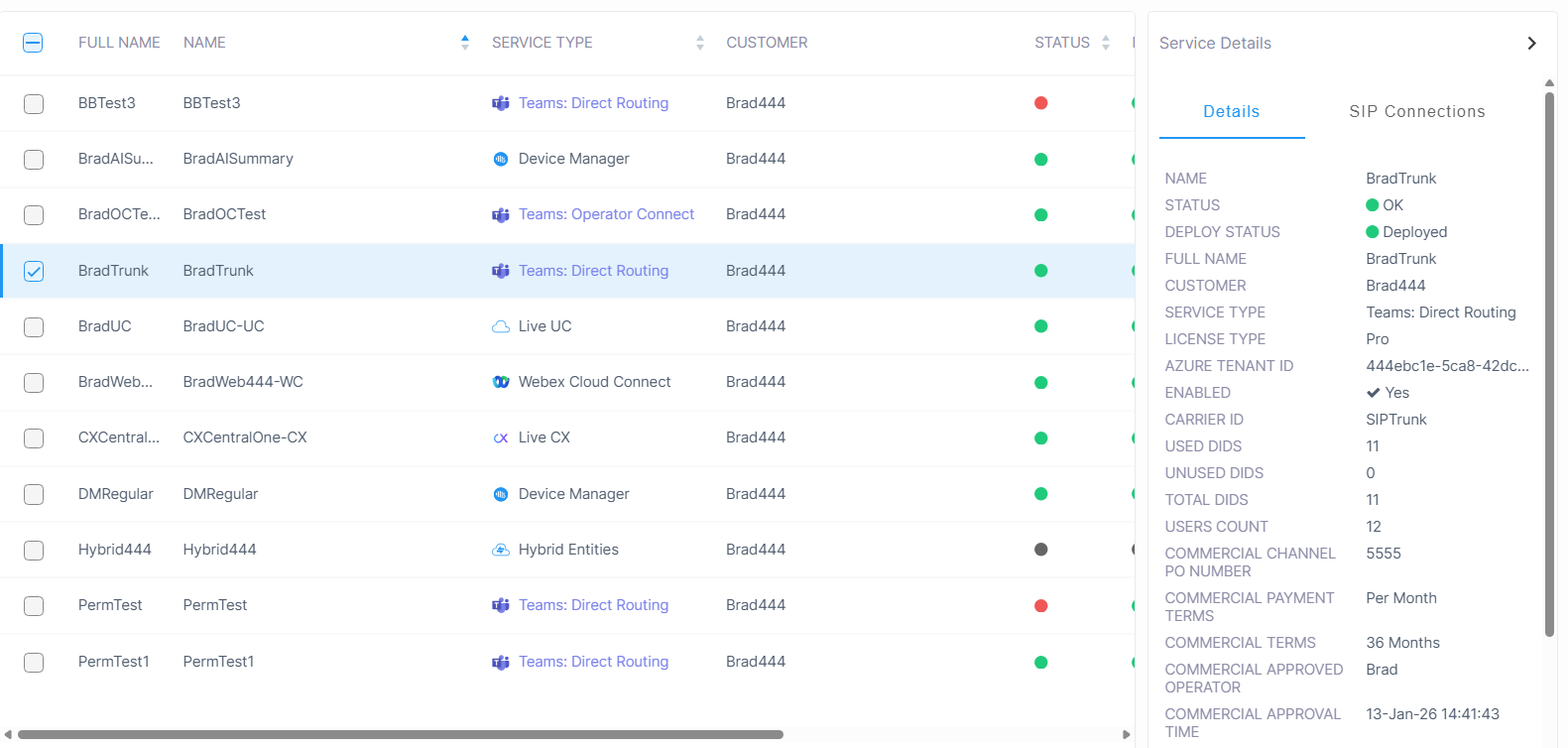
In the Services page, verify service has been successfully deployed and status is OK. You can select the relevant service and view a summary of the statuses in the Service Details. |
|
2.
|
Open the Service portal for the new service (Teams Direct Routing > Edit Service). |
|
3.
|
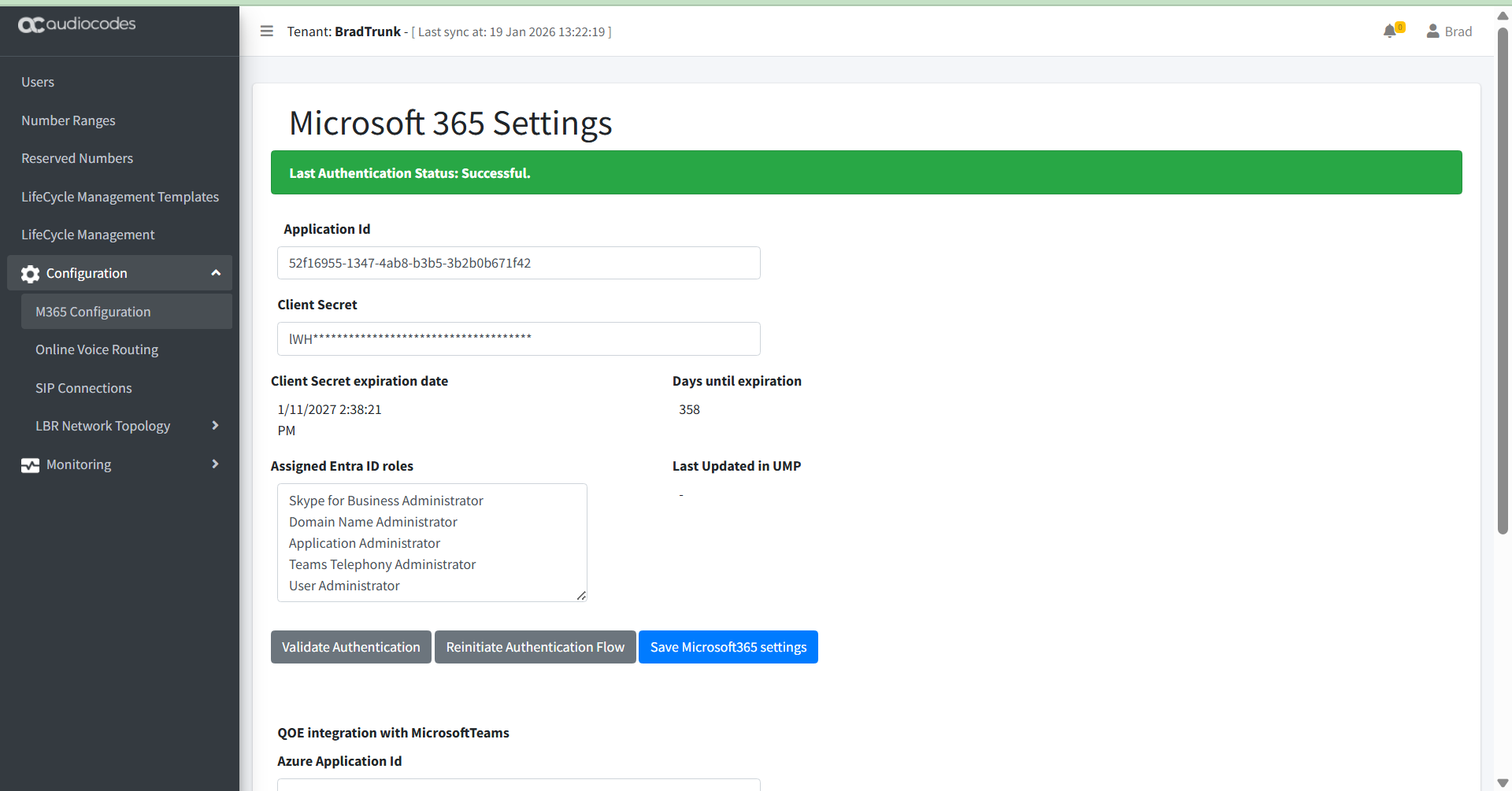
Navigate to the Microsoft 365 Settings page (Configuration > M365 Configuration). |
|
4.
|
Verify that the tenant has successfully authenticated with the M365 platform. Click Validate Authentication to perform manual authentication. |
|
6.
|
Open the customer Azure portal, in the Navigation pane, select App Registrations and search for the new registration. |
|
7.
|
In the Navigation pane, select Manage > Certificates & Secrets. |

|
8.
|
Copy the secret value to notepad. |
|
●
|
Copy the value immediately to notepad as it hashed after a short time. If you do not see the secret value then create a new one and copy it. |
|
●
|
If you use the Application registration to create additional services, a new secret should be created for each new service. |
|
9.
|
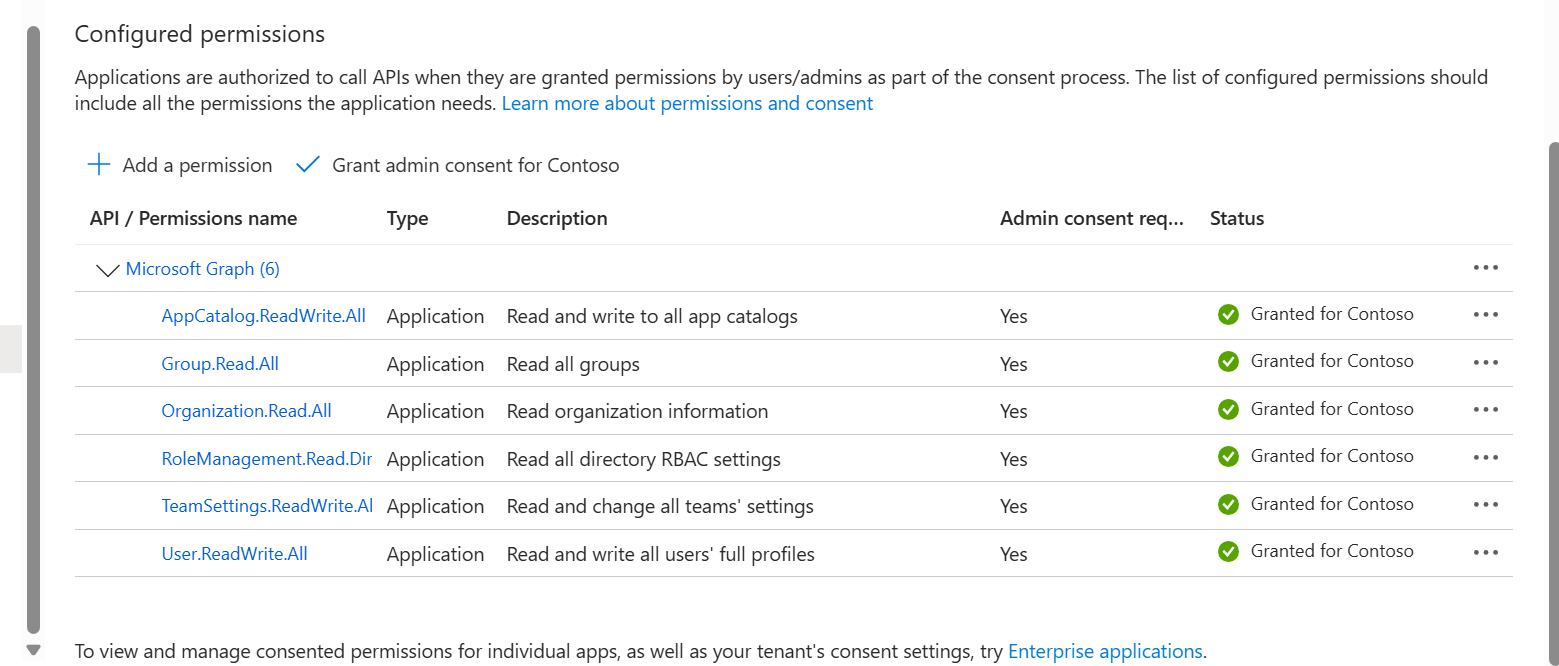
In the Navigation pane, select Manage > API permissions. View the new permissions created by the automatic script. |
|
10.
|
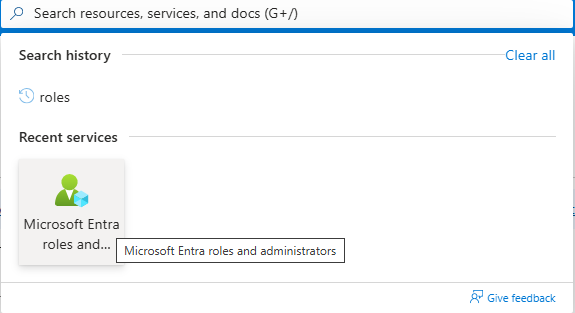
In the search box in the Menu bar, type Microsoft Entra Roles and administrators. |